
Reservation System
Online Reservation Form
The online reservation form in Reservation.Tools is activated from the venue’s Administration panel.
From there it can be:
✔ added to a website
✔ shared on social media
✔ used as an automatic link in chat messages
## Accessing the Administration Panel
1. Open Reservation.Tools
2. From the menu in the top-right corner select:
👉 Administration
This opens the account administration panel.
## Selecting a Venue
1. In the left-hand menu select:
👉 Venues
2. Choose the venue you want to configure
3. Click Edit Venue
## Opening the “Integrations” Section
1. In the venue menu select:
👉 Integrations
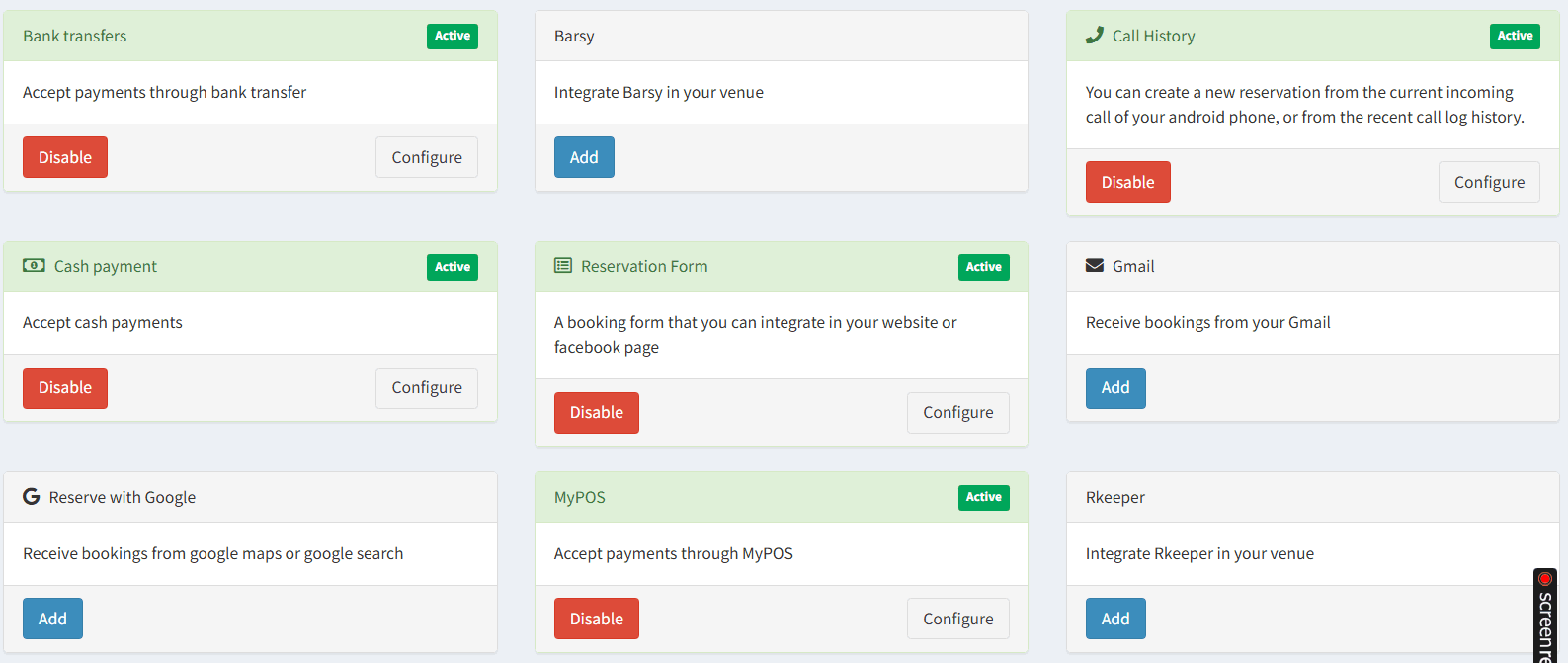
3. A list of all available integrations will be displayed.
## Activating the “Reservation Form”
Find the tile:
🟩 Reservation Form
Under it there is a note that the form can be integrated:
- into a website
- into a Facebook page
To activate it:
✔ click Add
or
✔ Configure, if it is already active
After activation the status becomes:
🟢 Active
### What is generated after activation
Once the form is activated, the system generates:
✔ a link to the online reservation form
✔ embed code for websites
✔ a link for social networks
✔ a link for automatic chat replies
### **Using the form on a website**
The form can be:
- embedded in a page
- opened in a new window
- added as a “Reserve” button
### **Using the form in social networks**
The link can be placed:
✔ in Instagram bio
✔ in the Facebook “Reserve” button
✔ in the Google Business profile
✔ in TikTok bio
### **Using the form as an automatic message**
It can be sent automatically in:
- Messenger
- Instagram Direct
- WhatsApp
- Chat bots
Example message:
“Hello 👋
Thank you for your inquiry!
You can make a reservation here:
👉 [reservation form link]”
This way:
✔ the guest makes the reservation themselves
✔ they select only available time slots
✔ the request goes directly into the system
**Recommendations**
Before sharing the form:
✔ make sure working hours are configured
✔ check rules and exceptions
✔ create a test reservation
**Links to the Online Reservation Form**
After activating the Reservation Form in the Administration panel, two buttons / links appear.
They have different purposes and are used in different channels.
**“Form Widget Setup Page”**
This button is used when you want to:
✔ copy the link for the form
✔ add the form to a website
✔ place a “Reserve” button on a page
This is the website link.
Typical use cases:
- embedding in a page
- opening in a new window
- “Book / Reserve” button
- landing pages
This link is intended for:
👉 official websites
👉 partner websites
👉 portals and directories
**“Live Preview”**
This is a link for directly opening the form.
It is suitable for:
✔ social networks
✔ chats
✔ automatic replies
**Recommended for:**
- Facebook Messenger
- Instagram Direct
- WhatsApp
- TikTok chat
- Viber
- auto-responders
 App Store
 Google Play
 Web App
Have questions?