
Reservation System
Creating Rules for Working Hours
In addition to configuring time intervals and working days, the Working Hours section allows you to create and apply Rules that apply to online reservations within specific periods.
Rules are used for:
- discounts on online reservations
- promotional conditions
- special menus / products
- campaigns active on certain days or time ranges
# How to open the Rules screen
1. Open the Reservation.Tools app
2. Select the venue from the menu
3. Go to Working Hours
4. Open the Rules tab in the top menu
5. There you will see a list of existing rules and a button: + Add Rule
## Creating a new rule
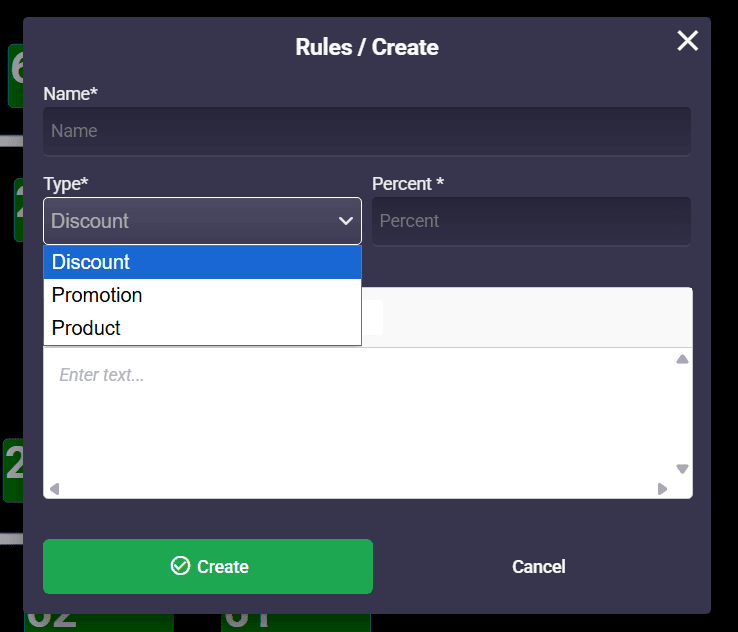
After pressing +, the “Create Rule” form opens.
Fill in the following fields:
✏ Rule Name
Enter a clear and descriptive name, for example:
- “Happy Hour”
- “Winter Dinner”
- “Wednesday Promo Menu”
- “Online Booking -10%”
## Types of Rules
From the Type dropdown, you can choose between three rule types:
**1. Discount**
Used when:
- you offer a percentage discount for reservations
- you want to encourage bookings in specific time slots
The Percentage (%) field must be filled in.
Examples:
- 10% for early reservations
- 20% on low-traffic days
- -15% for online bookings
**2. Promotion**
This rule type is used when there is:
- no percentage discount
- but there is a special condition or bonus
Examples:
- Free dessert
- Welcome drink
- Special set menu
- “Valid only for online reservations”
Details are entered in the description field.
**3. Product**
Used when the rule is related to:
- a specific menu
- a special event
- tasting or themed evenings
Examples:
- “Winter Dinner Menu”
- “BBQ Weekend Menu”
- “Wine Tasting Evening”
This type of rule is useful for:
- promoting special menus / events
- showing clear information to the guest
- ensuring correct expectations during reservation
# Assigning a Rule to a Working Time Period
After creating the rule:
1. Go back to the Working Hours tab
2. Select a day of the week
3. Under the time interval, there is a dropdown menu
4. From there you can select:
✔ which rule applies to that time period
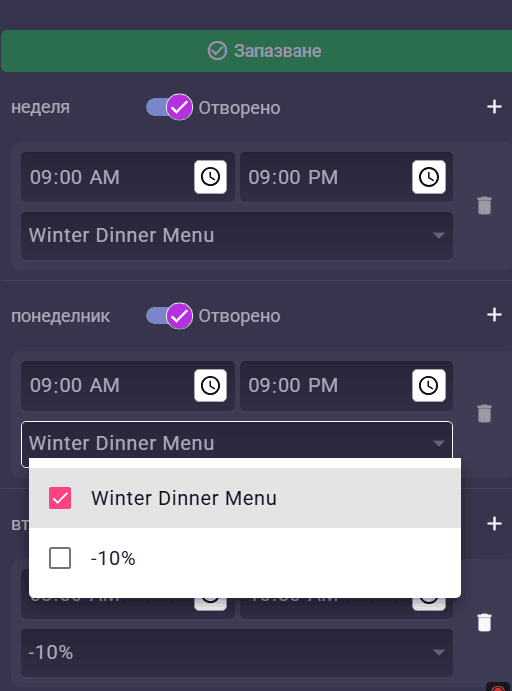
Day Time Rule
Friday 18:00 – 22:00 Winter Dinner Menu
Wednesday 12:00 – 16:00 -10% Discount
Sunday 17:00 – 21:00 Family Promotion
# How rules appear to the guest
When a customer makes an online reservation:
- the active rule is displayed for the selected time slot
- the rule conditions are applied
- the rule is also visible in the reservation details
This ensures:
✔ the guest knows what is included
✔ the staff sees the active conditions
✔ operational mistakes are reduced
Common use cases
✔ encourage bookings during low-demand hours
✔ special offers for online reservations
✔ different menus by days or periods
✔ promotions for specific areas or seating zones
 App Store
 Google Play
 Web App
Have questions?