
Reservation System
Setting up the working time
All settings related to the venue’s working hours are configured directly in the Reservation.Tools application.
# Accessing the “Working time” screen
1. Open the Reservation.Tools app.
2. From the menu in the top-right corner, select the venue.
3. From the list of options, tap “Working Time”.
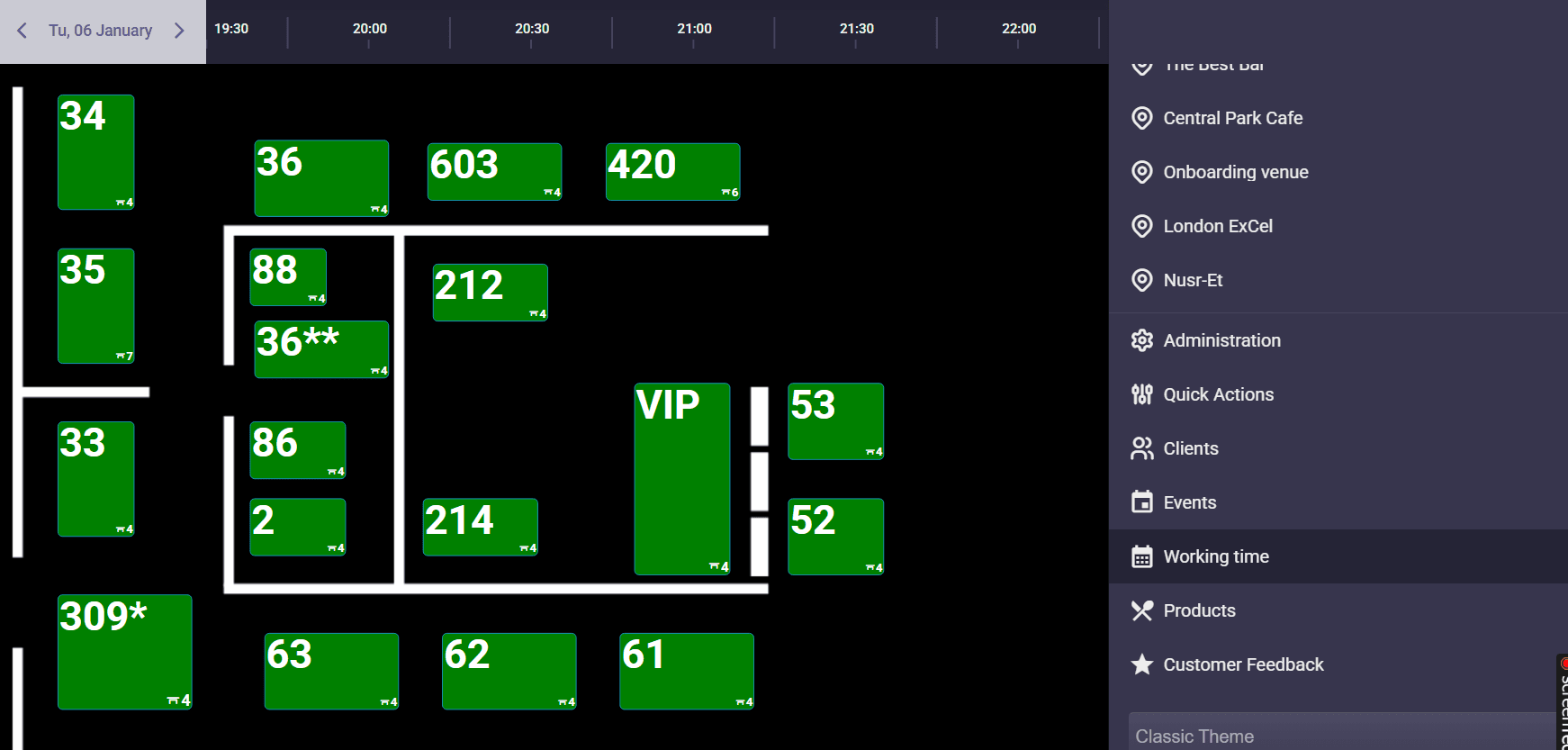
On this screen you can manage:
- the working hours for each day of the week
- the time intervals available for reservations
- active and inactive days
- assigned menus / periods
At the top of the screen there is a “Save” button. It is used to confirm and apply all changes.
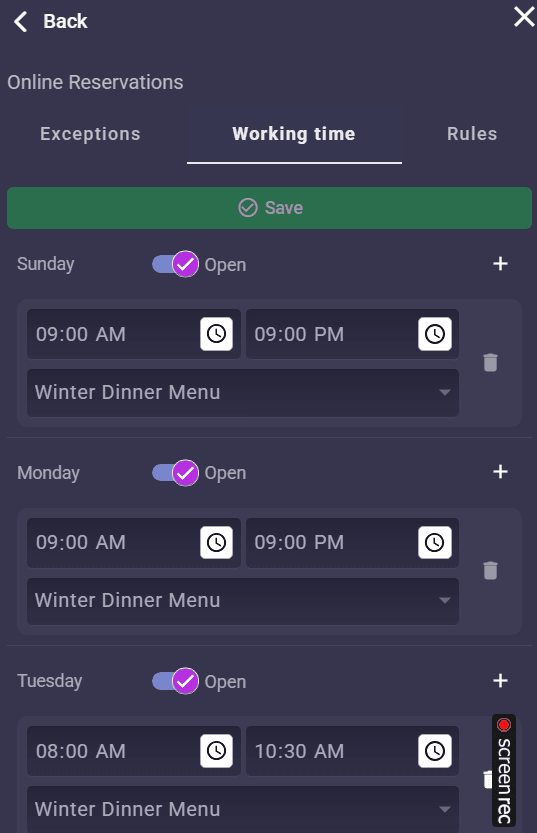
## How the settings for each day are organized
The days of the week are listed one below the other.
For each day you can see:
- whether it is enabled (Open) or disabled (Closed)
- the configured time intervals
- a button for adding a new interval ( + in the top right corner)
**When the day is “Open”**
Below the day name, the active working time intervals are displayed.
For each interval you can configure:
- opening time
- closing time
You can add:
- a single working interval for the day, or
- multiple separate periods (for example lunch + dinner)
- using the “Add Interval” button.
**When the day is “Closed”**
For that day:
- online reservations are not accepted
- no available time slots are shown in the reservation forms
- customers cannot submit a booking request
Example of multiple intervals in one day
You can configure:
08:00 – 10:30
17:00 – 22:00
This is useful for:
- lunch breaks
- split working shifts
- seasonal service schedules
## When and where the changes are applied
After pressing “Save”:
**✔ In the online reservation form on the website**
Changes are applied:
👉 immediately (within seconds)
Customers only see the currently active time slots.
**✔ In social media and online booking links**
(Facebook / Instagram “Reserve” button, QR codes, booking links)
Changes are also applied:
👉 immediately
All external booking buttons use the updated working hours from the system.
**✔ In the Google integration (Google Maps + Google Search)**
Changes are synchronized:
👉 the same day or at the latest on the next working day
Important note:
Google may temporarily display the old working hours
however, it will not allow reservations outside the new valid intervals
customers will still see correct available booking slots
This is normal behavior of the Google synchronization process.
 App Store
 Google Play
 Web App
Have questions?