
How To
Tutorials to help you get started and upskilled for the advanced features
Working hours (Worktime) control when your venue accepts online reservations. The schedule you configure here is the source of truth for every online booking channel: the reservation form on your website, the form link you share on Instagram, and Reserve with Google. Guests can only book inside the intervals you open. Walk-ins and reservations created from the admin are not affected.
I. Where to find it
In the app, open Settings → Working time. The screen is split into three tabs:
- Exceptions — one-off closures or special hours for specific dates (holidays, private events).
- Working time — the recurring weekly schedule. Defaults to the current view when you open the screen.
- Rules — the library of discounts, promotions, deposits and no-show fees you can attach to time slots. Configuration of rules is covered in the reservation form tutorial.
II. Configure the weekly schedule
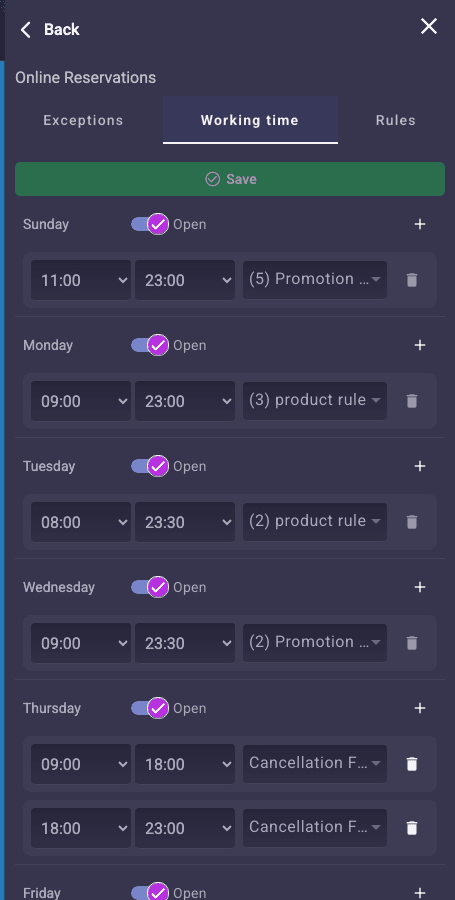
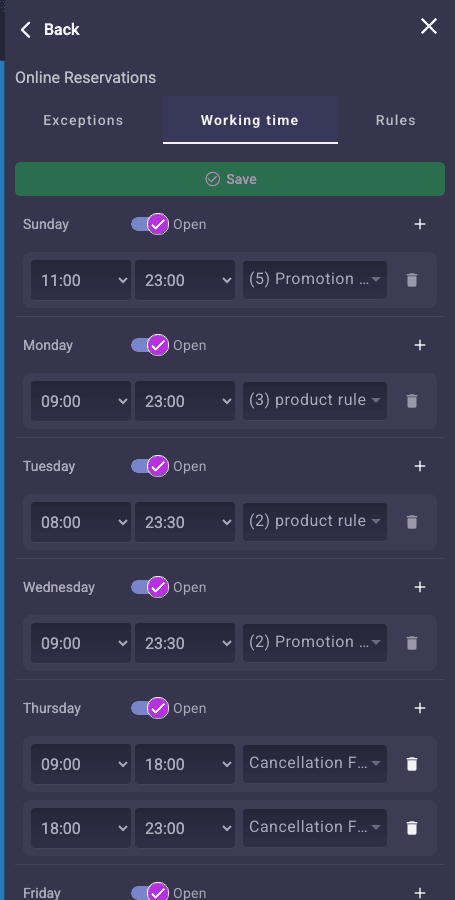
In the Working time tab you see all seven days of the week stacked top to bottom.
Per day:
- Open / Closed toggle — flip it on to accept online reservations that day, off to block the whole day. A closed day shows no time slots at all.
- Time slots — each slot is a start time and an end time (e.g. 12:00 – 15:00). A slot is a single continuous window.
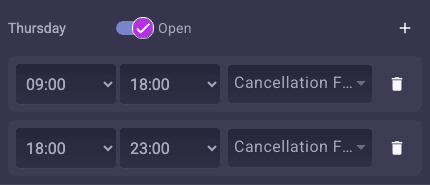
- Multiple slots — click the plus button to add a second slot. Use this if you run separate lunch and dinner shifts with a break in between. The form will offer only the open windows.
- Delete a slot — the trash icon next to the slot. The last slot cannot be deleted (to remove bookings for the day, toggle Closed instead).
- Rules — the multi-select dropdown next to each slot attaches one or more rules (discount, promotion, deposit, no-show fee, product). The rules themselves are created in the Rules tab.
- Copy to all days — once a day is configured, this button replicates its slots across the rest of the week. Saves time when your weekday hours are identical.
Validation: slots on the same day cannot overlap. If you set 12:00–15:00 and 14:00–22:00, the form shows the error No overlapping time slots and the Save button is disabled until fixed.
Time granularity: start and end times snap to the reservation interval configured for the venue (typically 15 or 30 minutes).
Click Save when done. The button stays greyed out until you change something.
III. Set up exceptions (holidays, special hours)
Exceptions override the weekly schedule for a specific date range. Use them for:
- Public holidays when you are closed — e.g. 25 December all day.
- Short-notice closures — staff training, private buy-outs, renovation.
- Extended hours — a late-night New Year’s Eve service that runs past your normal close time.
- Area-specific closures — the terrace closed for bad weather while the indoor room stays open.
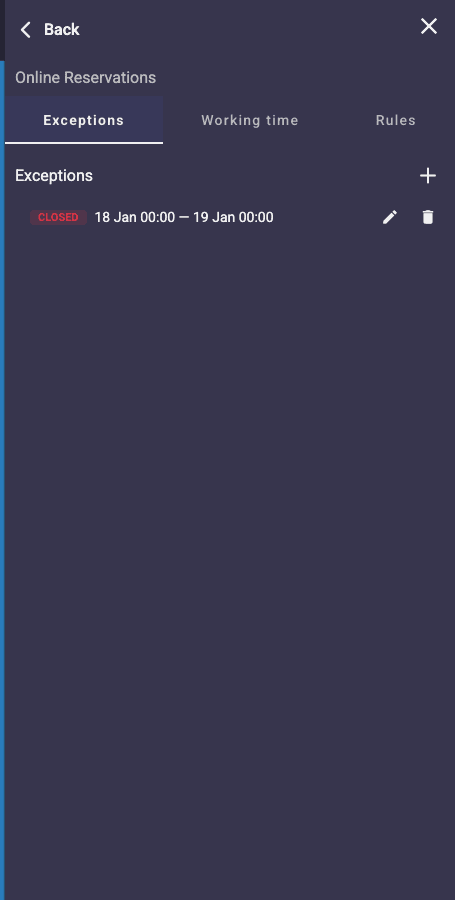
1. Open the Exceptions tab. Click the + button at the top right.
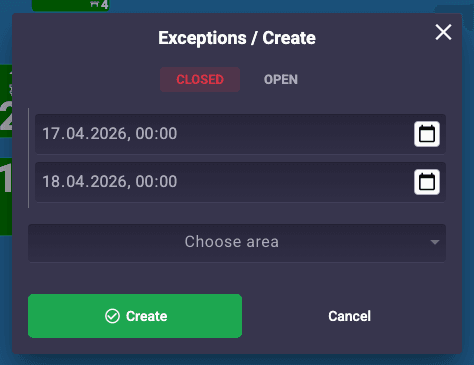
2. In the Exceptions / Create popup set:
- Status — pick Closed to block reservations for that window, or Open to allow reservations outside the regular schedule. Default is Closed.
- Start / end date and time — the range uses your venue’s timezone. Times snap to the reservation interval.
- Choose area — optional. Leave empty to apply the exception to the whole venue. Pick specific areas (e.g. Terrace) to close only those zones.
3. Click Create. The exception appears in the list with a coloured status badge and the date range. Edit or delete it from the icons on the card.
Behaviour: during a Closed exception, the form and Google Reserve do not offer any slots for the covered time. During an Open exception you extend availability beyond the weekly schedule. Exceptions are one-off — there is no recurring-exception feature. For a holiday that repeats every year, create a new exception each year.
IV. Rules (discounts, promotions, deposits)
The Rules tab is the library where you define the discounts, promotions, deposits, no-show fees, and bundled products that appear on top of time slots. Once a rule exists, you attach it to slots in the Working time tab (see section II).
Full configuration — rule types, percentages, amounts, deadlines, per-area pricing — is covered in the How to set up the reservation form for your website tutorial.
V. How guests see your schedule
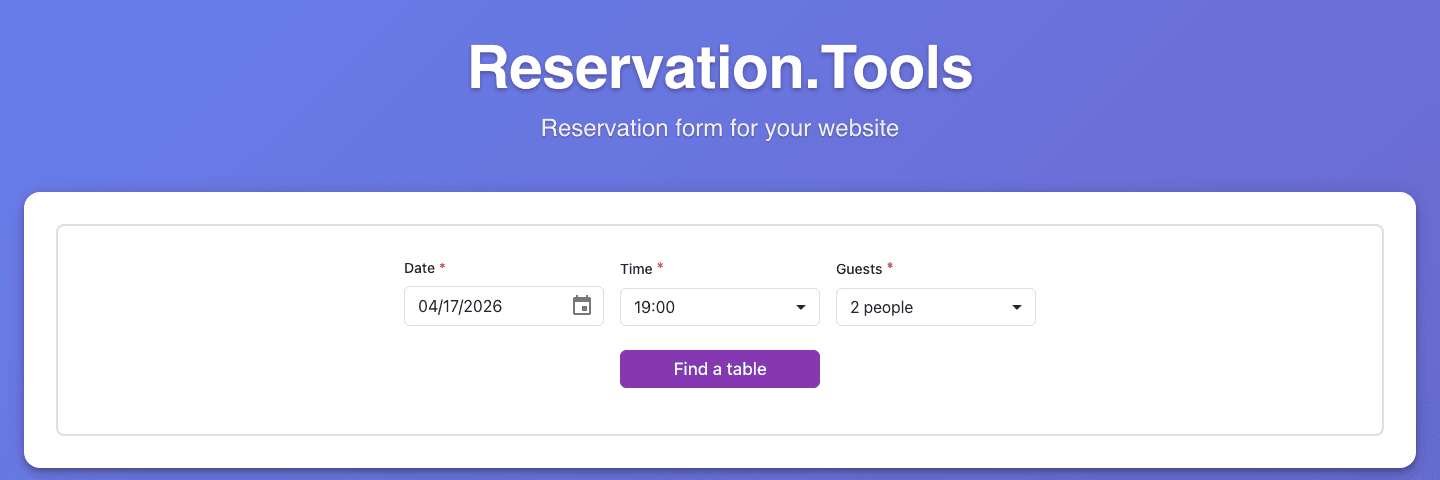
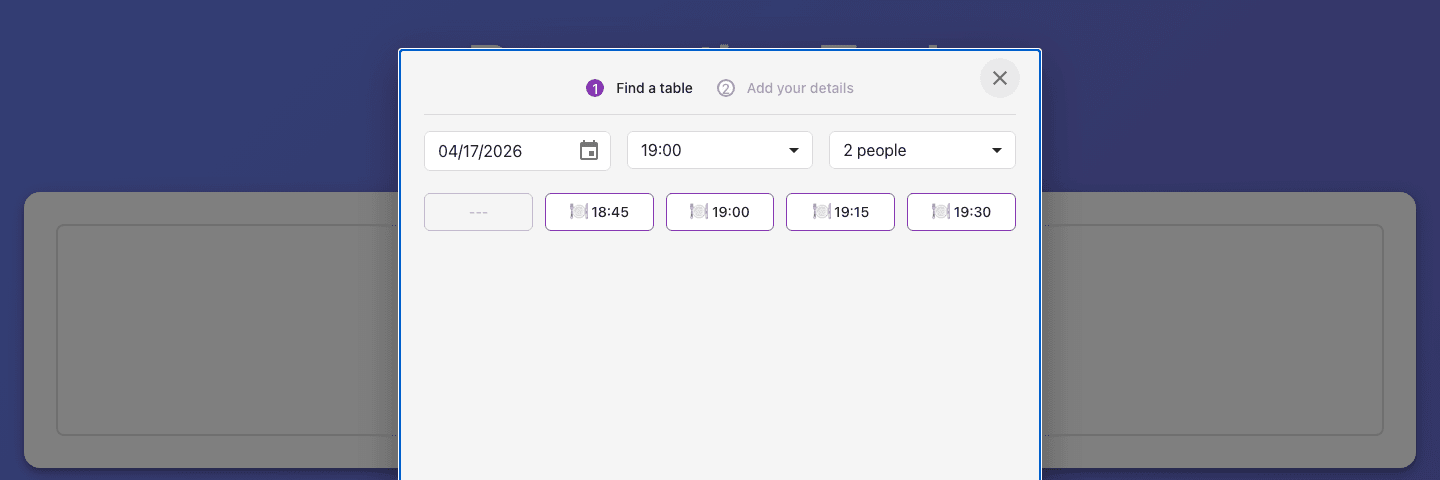
Reservation form (website or shared link): guests open the form, pick a date, and only the open slots for that day are shown. Slots with a discount rule show the percentage. Slots with a promotion show the marketing note. Slots with a deposit or no-show fee show the required pre-payment before confirmation.
Reserve with Google: the Google “Book a table” button on your Google Business Profile uses the same schedule. Keep in mind Google reflects changes on the next working day — between the save and the Google refresh, the old schedule may still be visible, but Google will not accept a booking that is no longer valid.

Tips
- Configure the most common weekday first, then hit Copy to all days and adjust the edge cases (shorter Sunday hours, closed Monday).
- Split lunch and dinner into two slots whenever you need different rules on each — a lunch discount and a dinner deposit, for example.
- Enter public holidays for the year in one batch in Exceptions — saves you from getting caught on a holiday morning.
- For bad-weather days when only the indoor room is safe to open, use an area-scoped Closed exception on the terrace rather than closing the whole venue.
 App Store
 Google Play
 Web App
Have questions?